1. How to approach an External Proposal

Created by Joanna Maslanka, Modified on Fri, 24 Apr at 4:24 PM by Joanna Maslanka

This article explains how to evaluate and respond to an External Proposal in a structured and effective way.


Each proposal you receive through Flextribe is a qualified opportunity. The requirements are already defined, and the client is actively looking for the right match. This allows you to focus on opportunities where there is a real need, rather than spending effort on early-stage sales.


Understanding how to quickly assess and respond to these requests is key to increasing your success rate on the platform.


As an invited supplier with free access to the platform, your access is focused specifically on External Proposals.

You do not have access to internal enterprise dashboards or other enterprise-specific modules. Your workspace is structured around receiving, reviewing, and responding to External Proposals only.


When you receive an External proposal, you will be notified via email and through the platform. 


The notification includes:

  • A brief introduction

  • A summary of the assignment

  • Key information such as role focus and timeline

You can access all requests by navigating to “External proposals” in the left-hand menu.
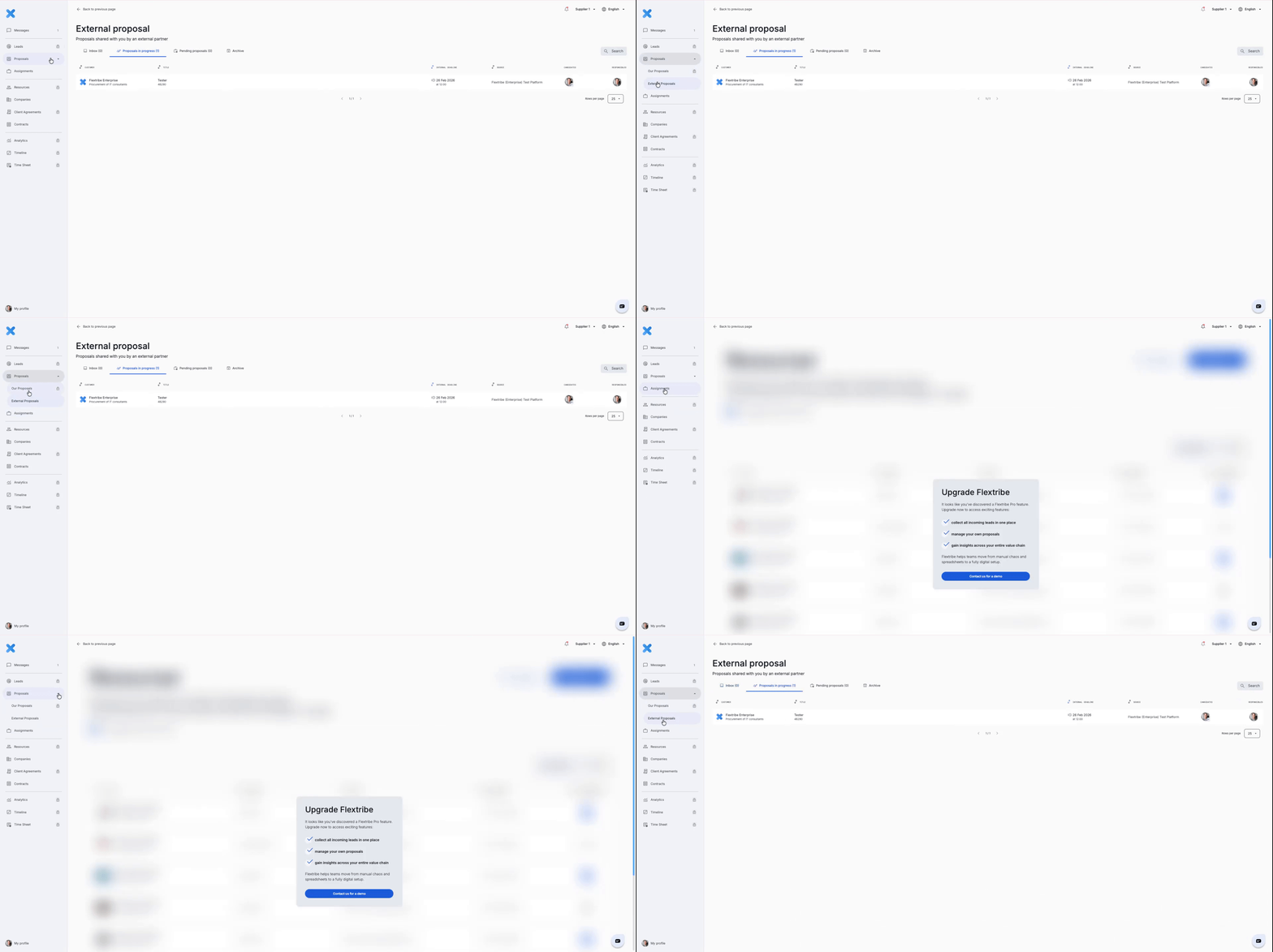


Navigate to “External Proposals” in the left-hand menu and select the relevant request from the overview.

All new proposal requests will appear in your “Inbox” within the External Proposals section.


Left-hand menu → External Proposals → Inbox (for new requests)
Left-hand menu → External Proposals → Proposals in Progress (for active responses)
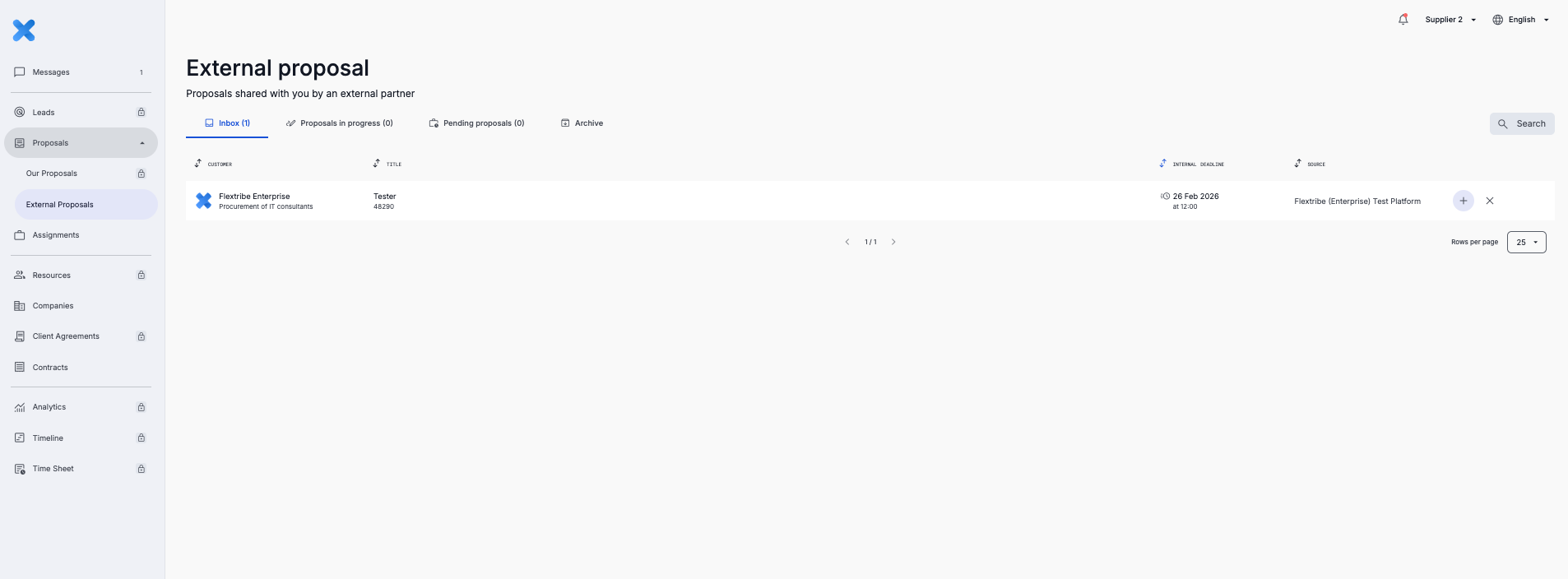


The Inbox provides a clear overview of:

  • New proposals awaiting review

  • Active proposals

  • Deadlines

  • Current status


Inside Proposals in Progress, you will see an overview table that helps you track and manage active submissions efficiently. You can only access the Proposals in Progress if you have shown interest in the proposal.
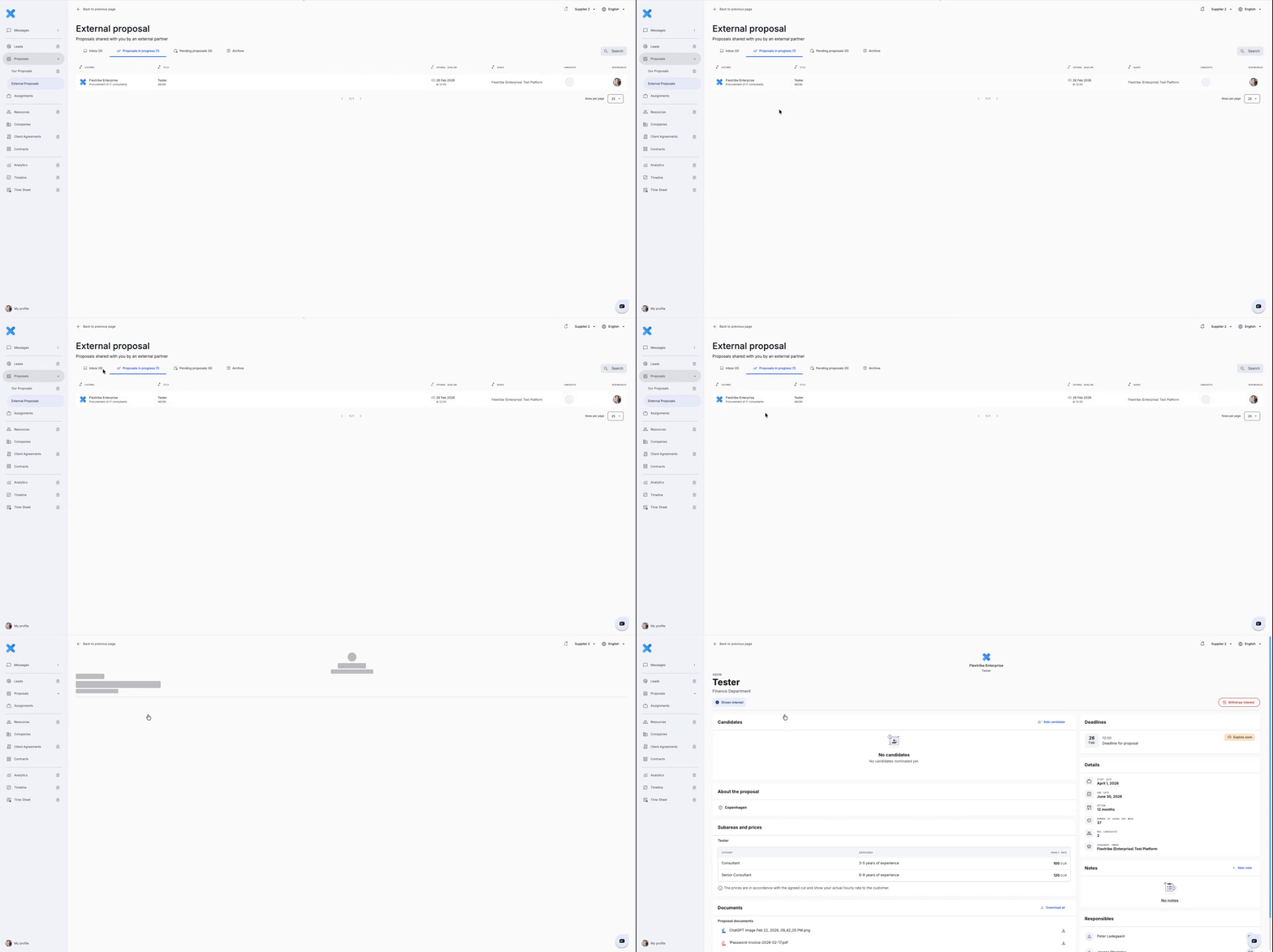


Proposals are organized into four main sections:

  • Inbox
    This is where all new proposals appear. When an enterprise or agency shares a proposal with you, it will first show up in your Inbox. From here, you can review the details and decide whether the opportunity is relevant for your business.

  • Proposals in Progress
    These are proposals you are actively working on. In this stage, you can show interest, nominate consultants, and manage the candidates you submit for the assignment. It represents all ongoing opportunities where you are participating in the process.

  • Pending Proposals
    When one of your nominated candidates moves further in the process, for example if they are invited for an interview, the proposal moves to Pending. This means the candidate is currently being evaluated by the Hiring Manager and is under active consideration.

  • Archived
    The Archive contains proposals that are no longer active. This may include proposals that have expired, been cancelled, or where the process has already been completed. While these proposals cannot be acted on anymore, they remain available for reference and historical overview.


It is also important to understand that proposals can move between these sections in two ways:

  • Manual actions – such as showing interest, nominating candidates, or when a Hiring Manager invites a candidate for an interview.

  • Automatic updates – where the platform updates the status based on system events, for example when a proposal deadline passes, a request is cancelled, or the process has been completed.

This combination ensures that all proposals stay organized and up to date, while reducing the need for manual administration.


Written for Freemium suppliers. Paying customer? Reach out to hello@flextribe.io.


Was this article helpful?

That’s Great!

Thank you for your feedback

Sorry! We couldn't be helpful

Thank you for your feedback

Let us know how can we improve this article!

Select at least one of the reasons
CAPTCHA verification is required.

Feedback sent

We appreciate your effort and will try to fix the article