Responding to an extension request
This article explains what happens when a client asks to extend an assignment with one of your consultants, and how to review and respond in Flextribe.
When a client wants to keep working with one of your consultants beyond the current contract's end date, they submit an extension request in Flextribe. The request is sent to you for review. It is your call whether to accept the proposed terms, decline them, or come back with a counter-offer.
You can watch the video walkthrough here
How you'll know an extension has been requested
You'll receive an in-platform notification when a new extension request arrives, along with an email alert. Open Flextribe and go to the relevant proposal or assignment to review the details.
What to review before responding
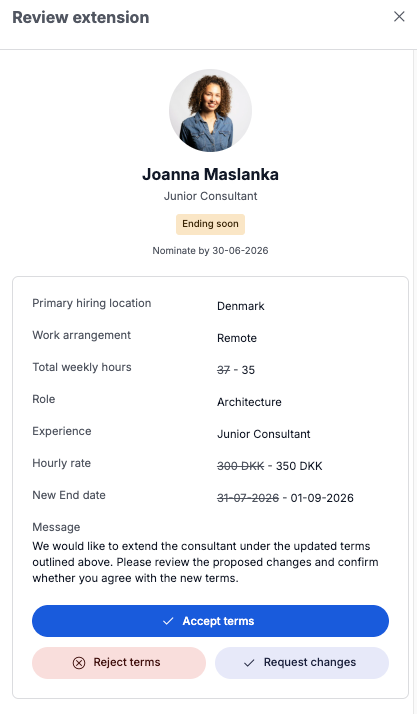
Open the extension request to see:
- The location (if the client changed it)
- The role and experience level
- The proposed rate
- The new contract start and end dates
- A short business justification from the client explaining why the extension is needed
Anything the client did not change keeps the same value as the previous contract.
Your three options
- Accept. If the proposed terms work for you and your consultant, accept the extension. This moves the process forward and the client can create the new contract.
- Decline. If the terms do not work – availability, rate, scope – you can decline. The extension does not proceed, and the client can decide whether to revise the terms and resubmit or close the request.
- Counter-offer. If most of the terms work but you want to negotiate an item (typically the rate), send a counter-offer with a short comment explaining why. The client can then accept your counter, decline it, or counter back.
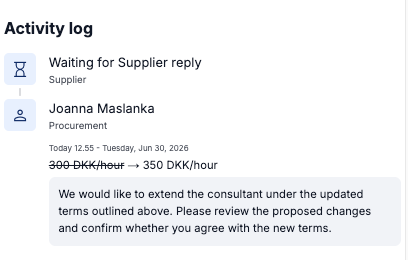
All responses and messages are saved with the request so the negotiation history stays fully traceable.
What happens after you accept
Once you accept, the client creates the new contract directly from the assignment. You'll receive an email notification when the contract is ready to be signed, along with a link to open it.
Both a signer from your side and a signer from the client side sign the document. The platform supports digital signatures, so you can sign through the link in the email or directly from the contract view in Flextribe.
After signing
Once both parties have signed, the new contract becomes Active on its start date and your consultant's engagement with the client continues under the new terms - without interruption.
Was this article helpful?
That’s Great!
Thank you for your feedback
Sorry! We couldn't be helpful
Thank you for your feedback
Feedback sent
We appreciate your effort and will try to fix the article