This article explains how Procurement creates a consultant once the Hiring Manager has selected a candidate.
Thing to keep in mind. Consultants replace Assignments. Everything about a hired consultant - engagement details, rate, location, contracts and documents - now lives on the consultant. |
Before you start
The candidate is in the Selected stage on the candidate board.
The Hiring Manager and Procurement responsible are confirmed on the request.
Step 1 - Open the request
Open the Request for Service. The selected candidate is shown in the Winner section, with their category and agreed rate.
Step 2 - Click Create consultant
Click Create consultant. The consultant is created with the details from the request - dates, rate, location, role, and responsible contacts.
What happens next
The agreed rate is locked and used for the contract.
Remaining candidates should be moved to Not selected if this has not been done already.
The consultant appears on the Consultants page - under Not started until the start date, then Current.
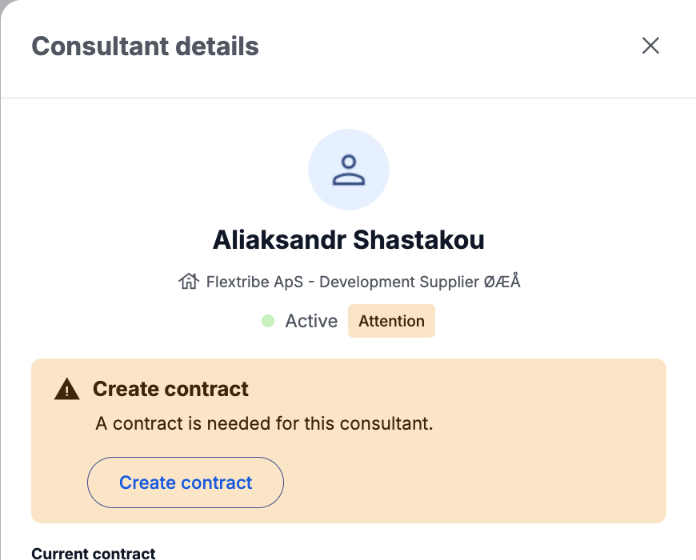
The consultant card shows a Create contract banner. That is your next step.
Keeping consultant details up to date
Open the consultant card to see and update engagement details, rate and hours, location, Procurement responsible, people and cost, onboarding, contract history and documents. See How do I find and manage my consultants?.
Watch out. Changing the hiring location resets the location, role and rate details. Fill them in again before saving. |
Read next
Need help?
Use the Need help? button in the bottom-right corner of the platform, or write to hello@flextribe.io. We are happy to help.
Was this article helpful?
That’s Great!
Thank you for your feedback
Sorry! We couldn't be helpful
Thank you for your feedback
Feedback sent
We appreciate your effort and will try to fix the article