This article explains how Procurement creates a contract for a consultant and sends it for approval and signing.
A contract turns a selected candidate into a working consultant. It uses the approvers from the original Request for Service and must be signed by the authorised parties before the consultant starts.
Step 1 - Start from the consultant card
Go to Consultants and open the consultant. When no contract exists yet, the card shows a Create contract banner. Click Create contract.
Step 2 - Select a template
Choose the contract template that fits the engagement and click Next. You can also allow a custom notice period here if needed.
Step 3 - Edit the contract
Flextribe fills in the contract with the relevant information - supplier and company details, role, consultant data and any special terms. Review and adjust the text, then click Next.
Step 4 - Review approvals
Check the approvers. They are pre-filled from the request; click Edit approvers to change them. You can also adjust the approval email each approver receives.
Step 5 - Add signers
Signers are pre-filled from the approval flow and receive the contract after approval. Click Edit parties to change them. If the right person is not on Flextribe yet, choose Create new user and add them on the spot - from your company or from the supplier.
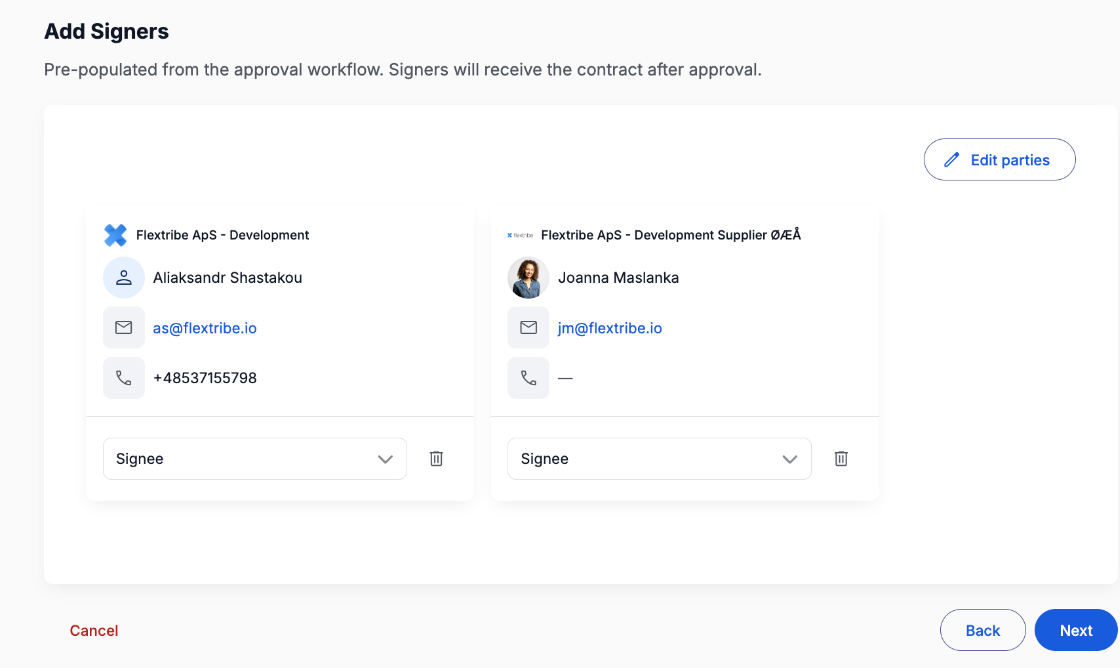
For the full flow, see How do I add signees during contract creation?.
Step 6 - Review and send
Review everything one last time and click Confirm and send. Flextribe emails the approvers and, once they approve, the signers.
What happens next
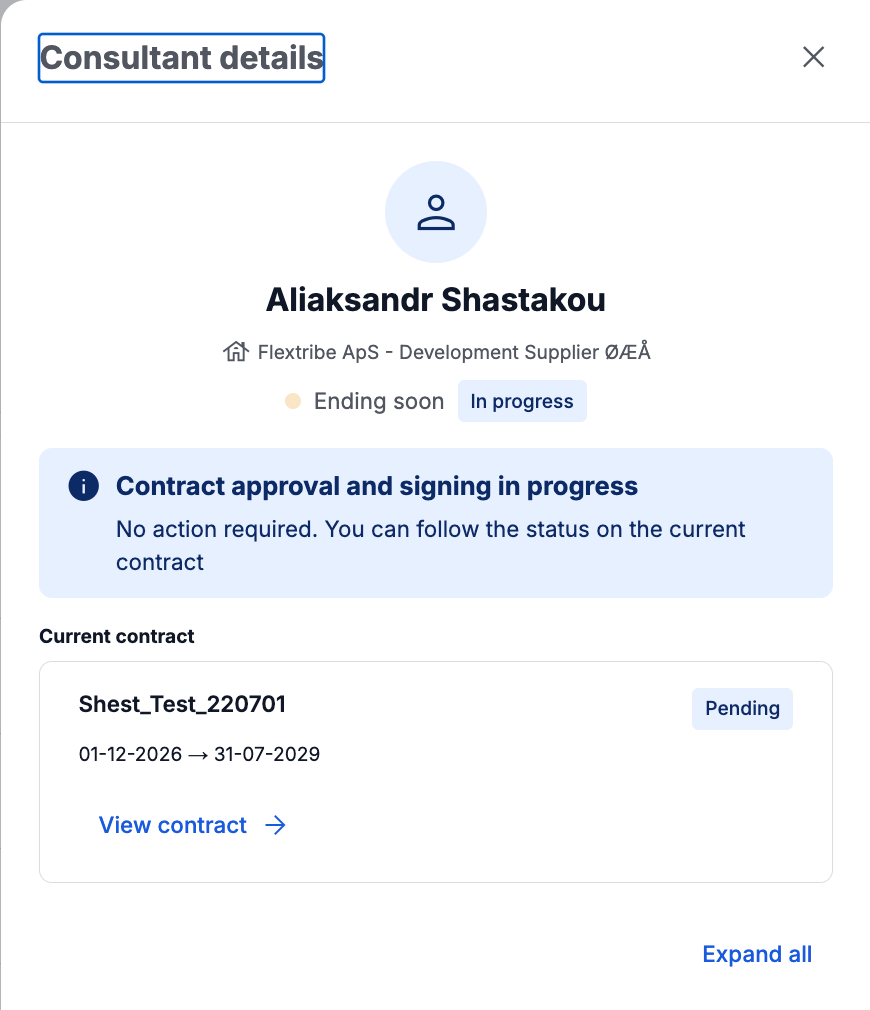
The contract is Pending while it is being approved and signed. Approvers and signees find it on their Home dashboard.
The consultant card shows Contract approval and signing in progress.
If an approver or signee rejects the contract, the card shows the reason. Update the contract and send it again.
Once everyone has signed, the contract becomes active and is listed in the consultant's Contract history.
Need to change a signee after sending? Open the contract and click Edit next to Signees. Every change is recorded in the contract's activity log.
Extending a consultant? Extensions create a new contract that replaces the current one. See How do I request an extension for a consultant?. |
Need help?
Use the Need help? button in the bottom-right corner of the platform, or write to hello@flextribe.io. We are happy to help.
Was this article helpful?
That’s Great!
Thank you for your feedback
Sorry! We couldn't be helpful
Thank you for your feedback
Feedback sent
We appreciate your effort and will try to fix the article