How to find, review and update your hired consultants
What this guide covers
Finding consultants in the new list
Reading status and signal
Opening and understanding the consultant card
Updating consultant details
Acting on banners (contract, extension, end date)
The full flow
Request approved → candidate selected → consultant created → consultant appears under Consultants → contract created, approved and signed → consultant works (Current) → extension or end → Ended.
Step 1 - Open the Consultants list
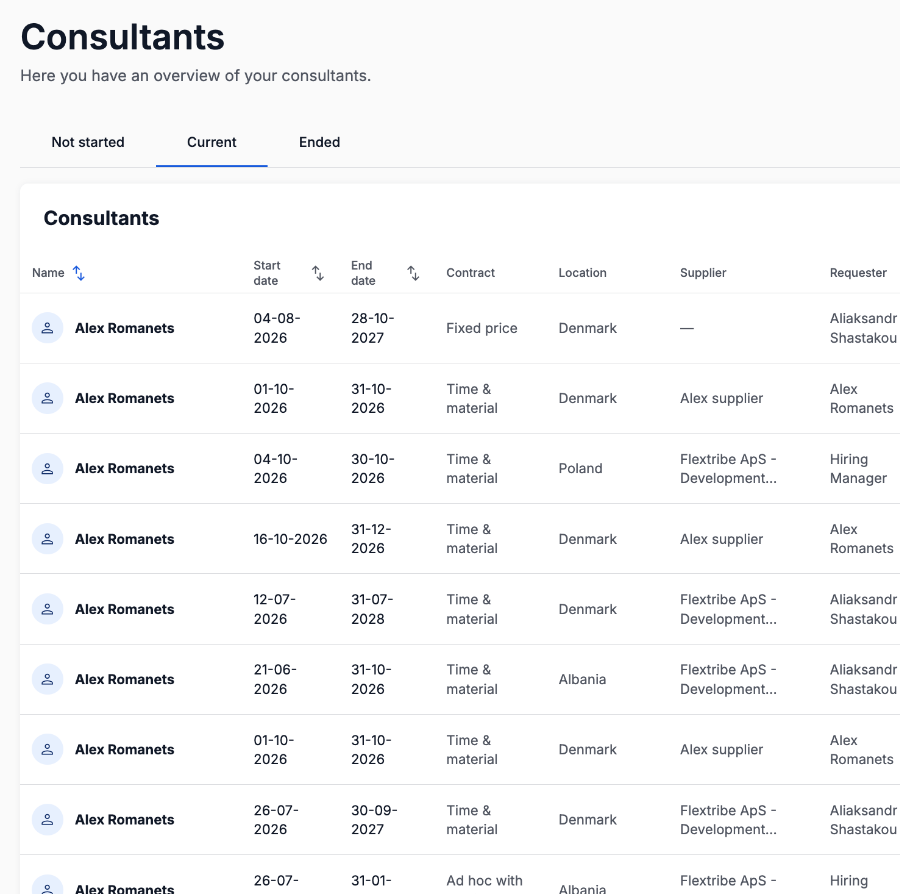
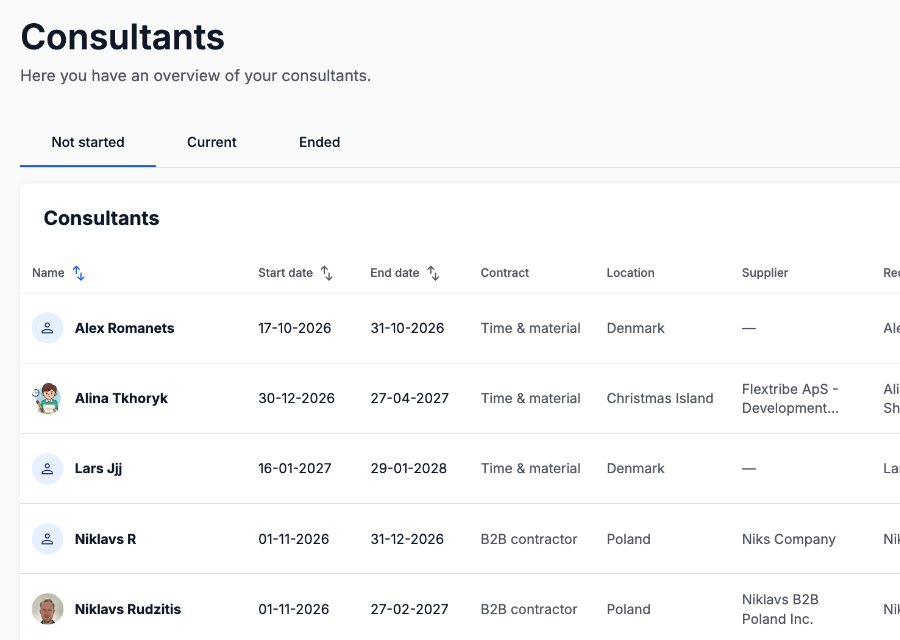
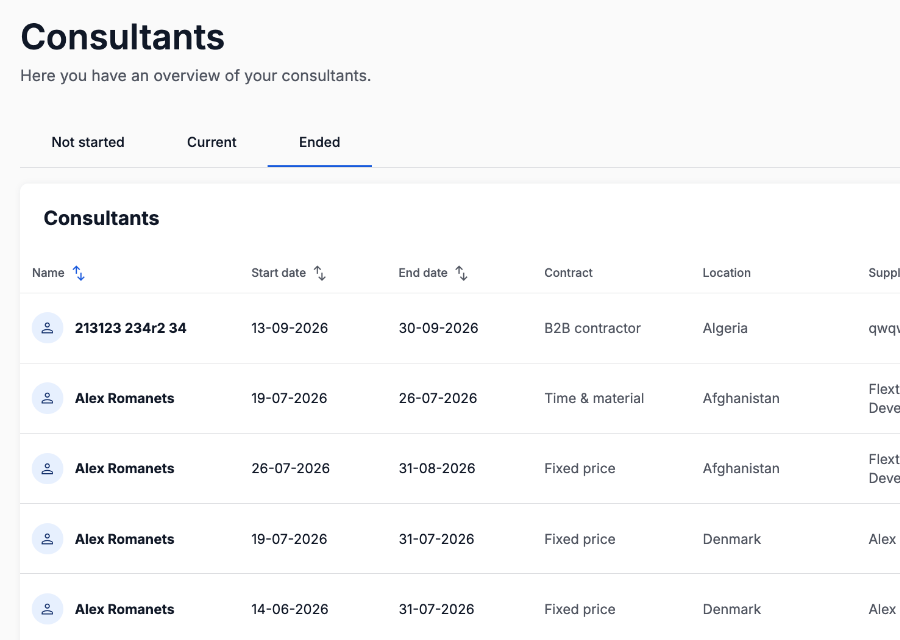
Click Consultants in the left-hand menu. Consultants are grouped in three tabs based on their start and end dates:
Not started - consultants whose start date is in the future.
Current - consultants working right now - today is between their start and end date.
Ended - consultants whose end date has passed.
Step 2 - Read the list
Each row shows the key facts about the engagement:
Name - the consultant. Click to open the consultant card.
Start date and End date - the engagement period. Both can be sorted.
Contract - Time & material, Ad hoc with maximum hours, Fixed price or B2B.
Location - the primary hiring location.
Supplier - the supplier company (empty for B2B contractors).
Requester - the person who requested the consultant.
Procurement responsible - the owner(s) on the Procurement side.
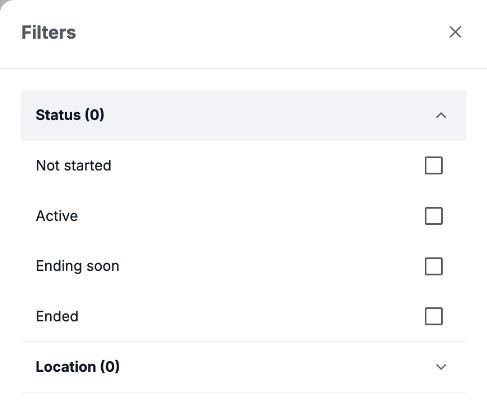
Status - Active, or Ending soon when the end date is getting close.
Signal - On track, In progress or Attention - see the next step.
Step 3 - Understand status and signal
Status tells you where the engagement is in time. Signal tells you whether something needs to happen.
On track - nothing is pending. No action needed.
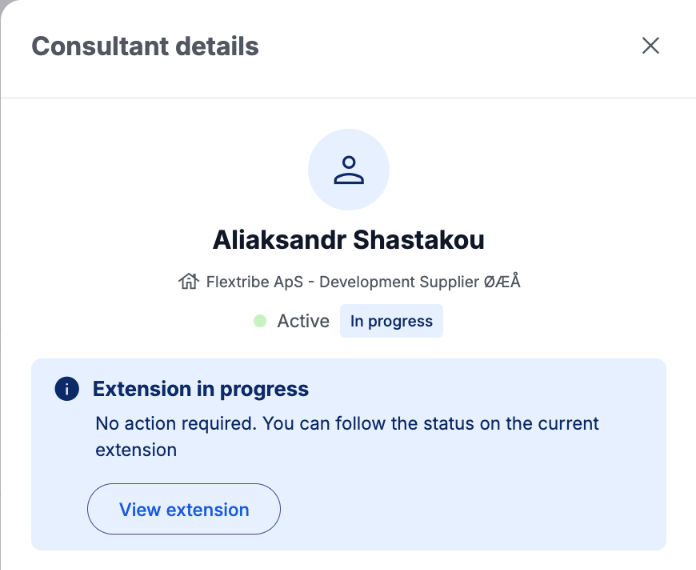
In progress - something is moving, for example a contract waiting for approval or signing. Follow it on the card - nothing is needed from you right now.
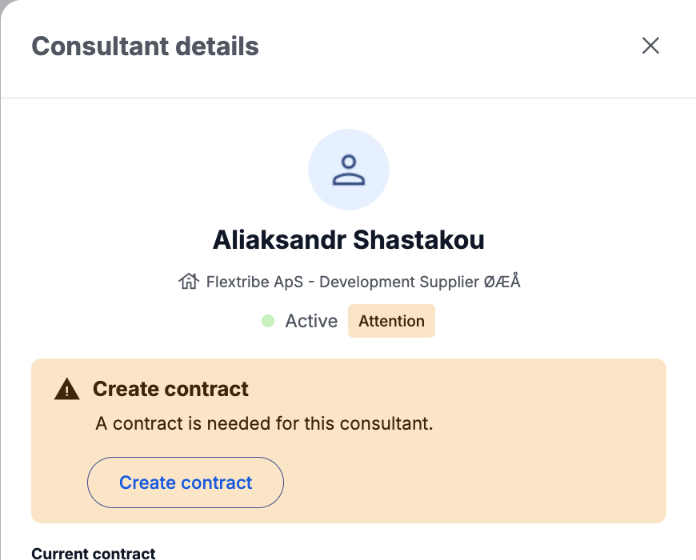
Attention - someone needs to act, for example a contract was rejected or the end date needs review. Open the card and follow the banner.
Step 4 - Open the consultant card
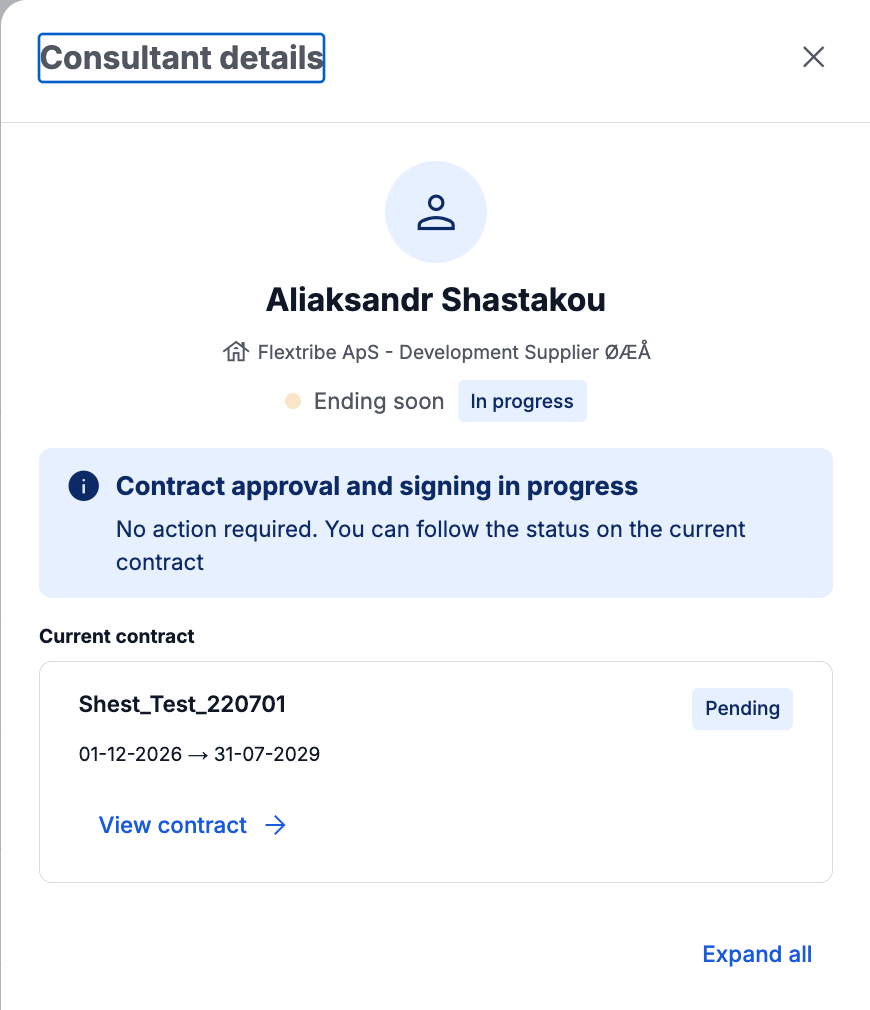
Click a consultant. The card opens on the right side. At the top you see the photo (or company logo), name, supplier, status and signal - and, if something needs attention, a banner explaining what is happening and who needs to act.
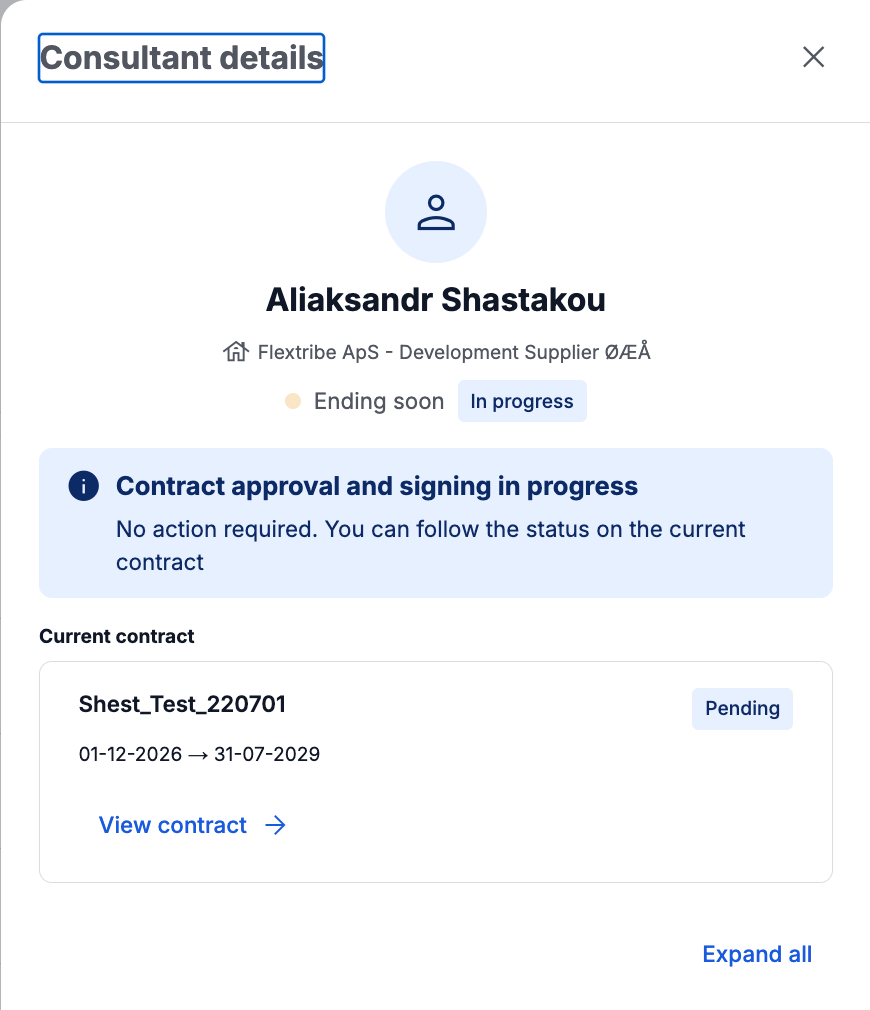
Below the banner you find the Current contract with its status and a View contract link. If no contract exists yet, the card shows No contract yet.
Step 5 - Review the sections
The card is split into sections you can open one by one - or click Expand all.
Engagement - start and end date, email, phone, role and experience.
Rate & Hours - service type, contract type, contract currency, hourly rate (in contract currency and EUR) and weekly hours. Ad hoc adds Max hours; Fixed price shows the total price.
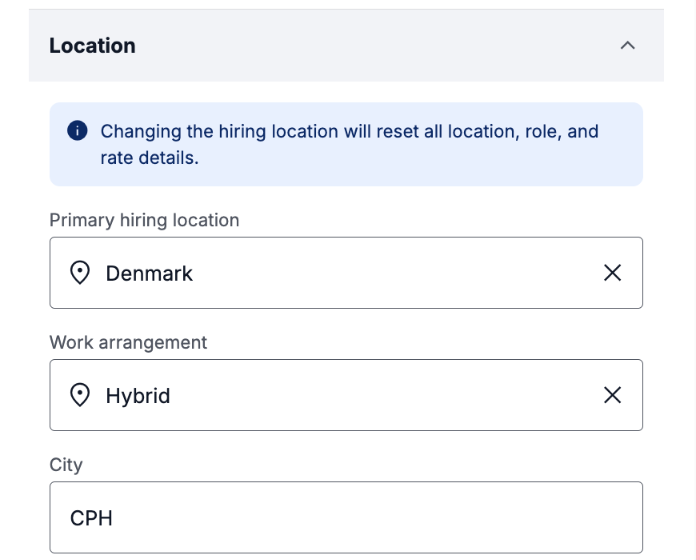
Location - primary hiring location, work arrangement, city, days in office and office address.
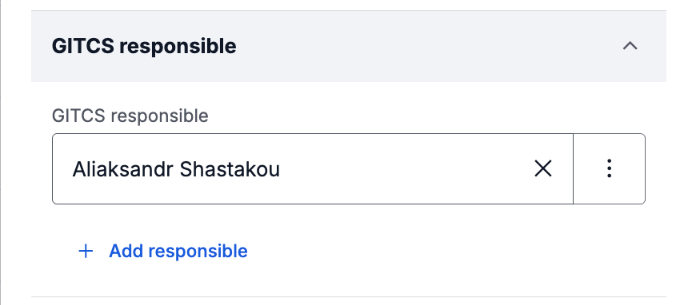
Procurement responsible - one or more owners on the Procurement side. Use Add responsible to add more.
People & Cost - cost center and requester.
Onboarding - company laptop, system accounts and Active Directory requirements.
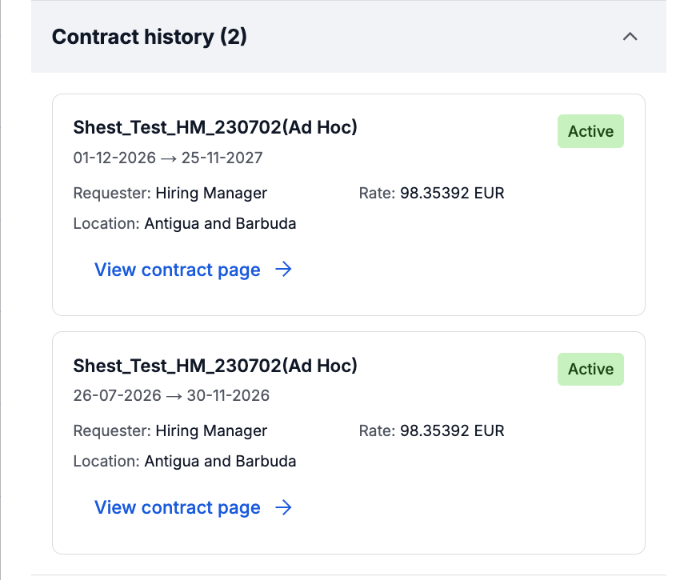
Contract history - all contracts for this consultant - the first contract and any extensions.
Documents - files attached to the consultant.
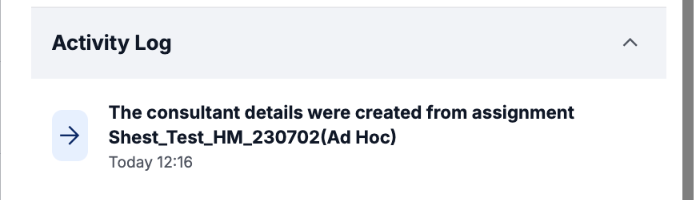
Activity Log - key events on the consultant, with links to the related contract or request.
Step 6 - Update consultant details (Procurement)
Change any field directly on the card and click Save changes. Click Close to leave without saving.
Step 7 - Act on banners
Actions start from the consultant card, not from the list. When something needs doing, a banner tells you what and who:
Create contract - the consultant is created but has no contract yet. Procurement creates it.
Contract approval and signing in progress - the contract is with approvers or signees. No action needed - follow the status.
Contract rejected by approver or signee - the contract was rejected and the reason is shown. Procurement reviews and updates it.
Review end date - the end date is within 45 days. The requester decides whether to extend or end.
Review extension request - an extension request was created. Procurement reviews the terms and shares them with the supplier.
Extension in progress - the extension is with the supplier or approvers. No action needed - follow it via View extension.
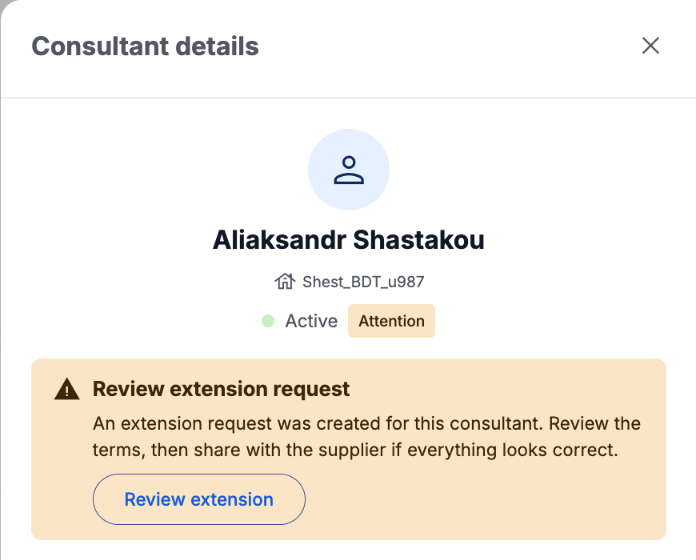
Click the button in the banner to act. For example, Review extension opens the extension with the new terms, who it is waiting on and its own activity log:
Who can do what
Procurement - can view the card, edit all details at any time and act on every banner.
Hiring Manager or Requester - can view the card but not edit it. Acts on Review end date and can request an extension.
Supplier - can view the cards of their own consultants but not edit them. Acts on Review extension terms.
Need help?
Use the Need help? button in the bottom-right corner of the platform, or write to hello@flextribe.io. We are happy to walk your team through the changes.
Was this article helpful?
That’s Great!
Thank you for your feedback
Sorry! We couldn't be helpful
Thank you for your feedback
Feedback sent
We appreciate your effort and will try to fix the article