Create a new signee on the spot - no Flextribe user needed first
What this guide covers
The Add Signers step and the Edit parties panel
Creating a new signee - Company or Supplier
Changing signees on a contract that is already sent
Step 1 - Open the Add Signers step
While creating a contract, go through Select template, Edit Contract and Review Approvals to step 4, Add Signers. Signers are pre-populated from the approval workflow and receive the contract after approval. Click Edit parties to change them.
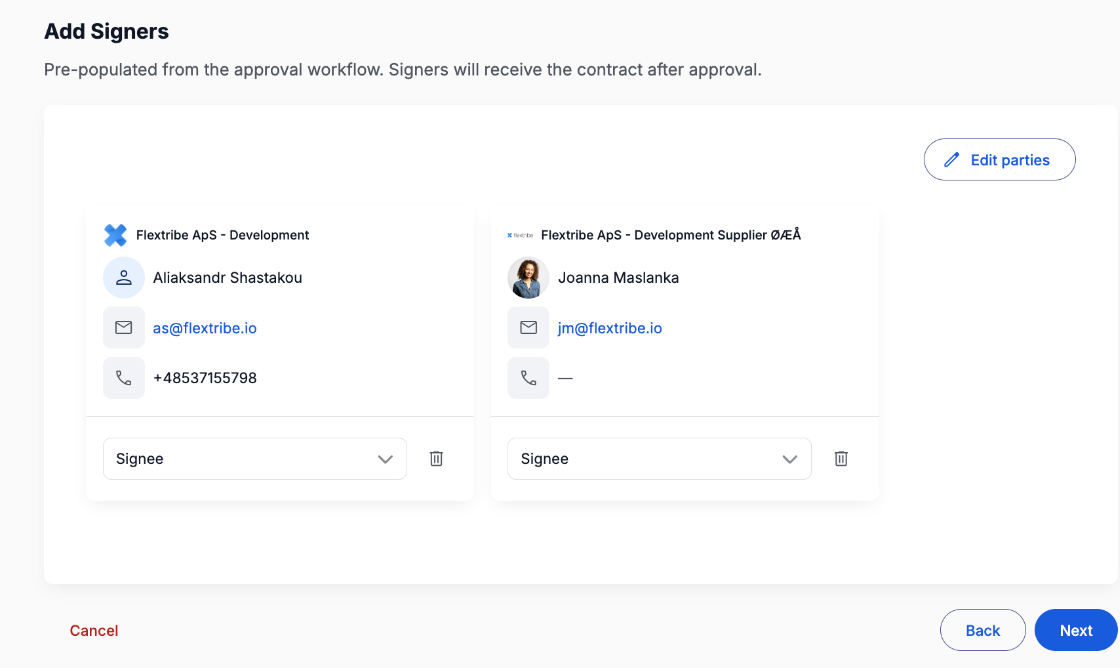
Signees and viewers are shown together, one party per field - Party 1, Party 2 and so on. Use Add party to add another field.
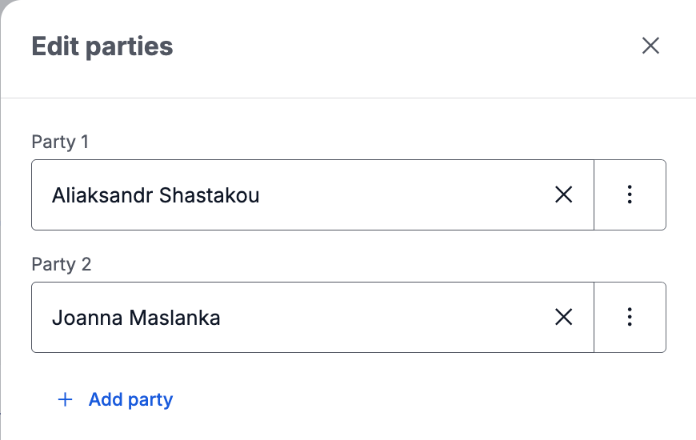
Step 2 - Pick an existing user - or create a new one
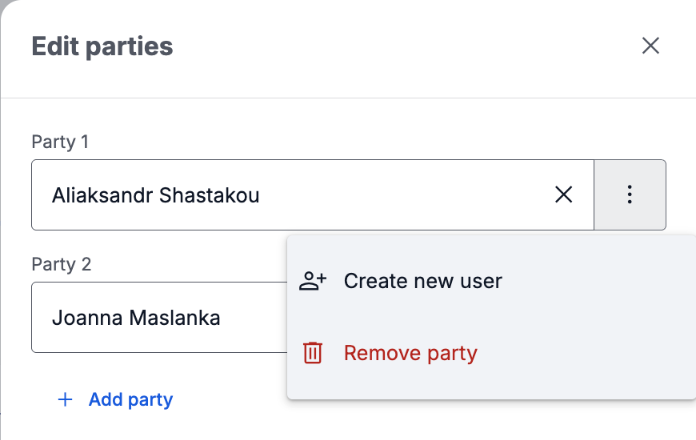
Start typing to search. The list scrolls endlessly and shows each person's company logo. If the person is not there, open the menu on the party field and choose Create new user. To remove a field, choose Remove party.
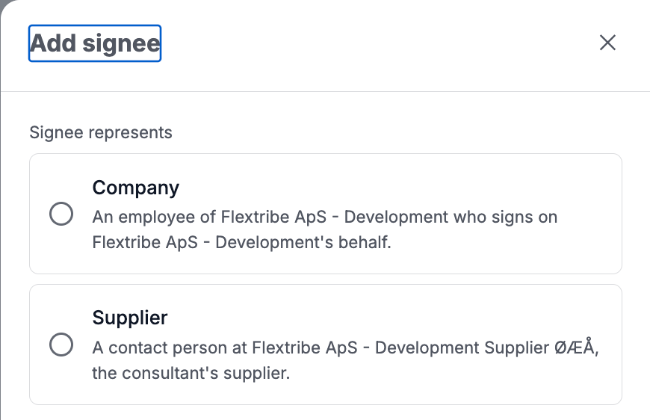
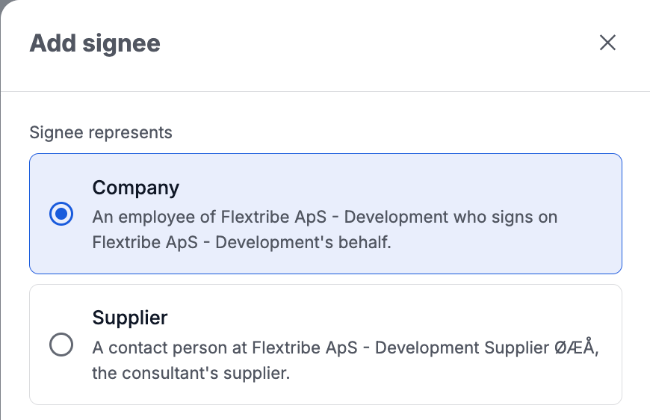
Step 3 - Choose Company or Supplier
Pick who the person belongs to. Continue is enabled once you have chosen.
Company - the signee works in your organisation. They sign from the approver dashboard in your Flextribe space.
Supplier - the signee works at the consultant's supplier. They sign from the supplier space.
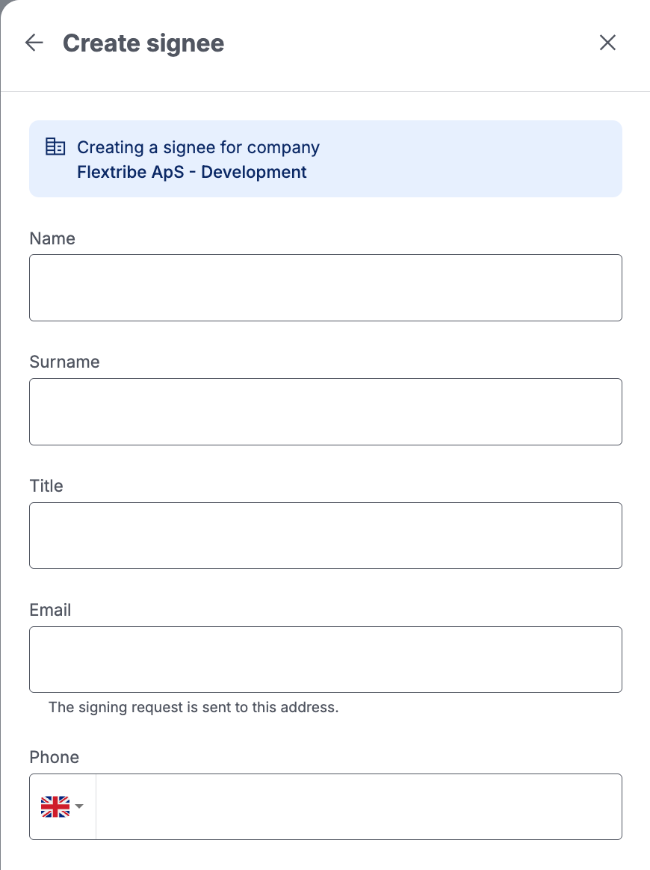
Step 4 - Fill in the details
Enter name, surname and email - the signing request is sent to this address. Title and phone are optional. Click Save and add as signee. The blue box at the top confirms which company or supplier the signee is created for.
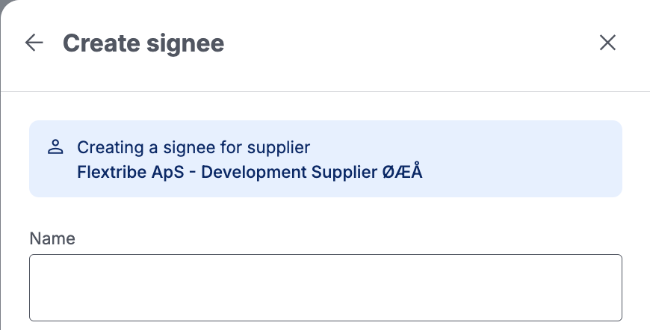
The new person is created and added to the contract as a signee. Finish the contract as usual.
Step 5 - Change signees on a sent contract
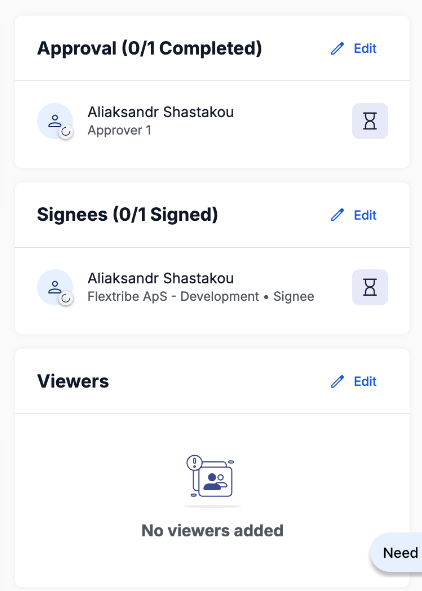
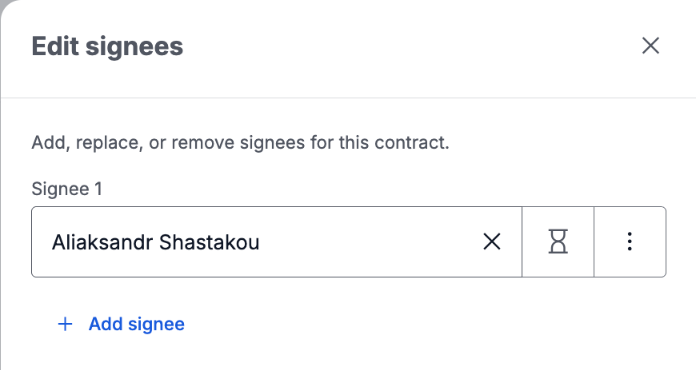
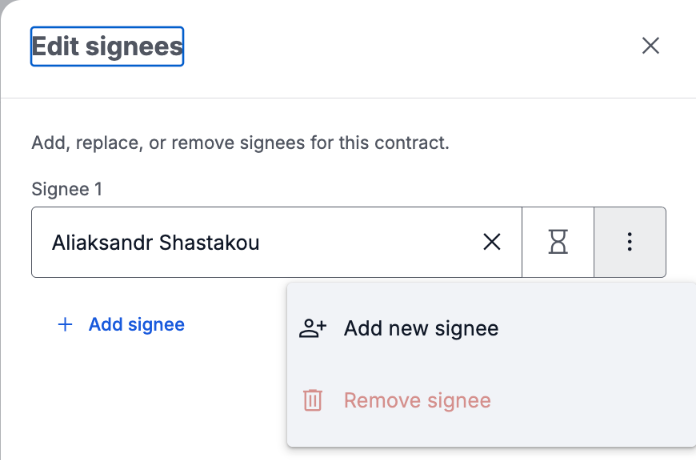
Open the contract and click Edit next to Signees. The menu on each field offers Add new signee and Remove signee. Add new signee opens the same Company or Supplier choice as above. Signing status is kept for signees who stay. Nothing is saved until you click Save changes.
Good to know
Does the new signee get access to everything? A Company signee joins your organisation on Flextribe; a Supplier signee is added as a contact of the supplier. Their access follows the usual roles.
Can I add a viewer instead of a signee? Yes - signees and viewers are now managed in the same panel.
Need help?
Use the Need help? button in the bottom-right corner of the platform, or write to hello@flextribe.io. We are happy to walk your team through the changes.
Was this article helpful?
That’s Great!
Thank you for your feedback
Sorry! We couldn't be helpful
Thank you for your feedback
Feedback sent
We appreciate your effort and will try to fix the article