This article explains how to reopen a request that was closed by mistake.
A closed request moves to the Completed tab and all its fields become read-only. If it was closed by mistake, you can reopen it. It then goes back to the status and tab it had before it was closed, and you can edit it again.
Thing to keep in mind. Only reopen a request that was closed by mistake. To start a new sourcing process - for example for a replacement - duplicate the request instead. |
Step 1 - Open the closed request
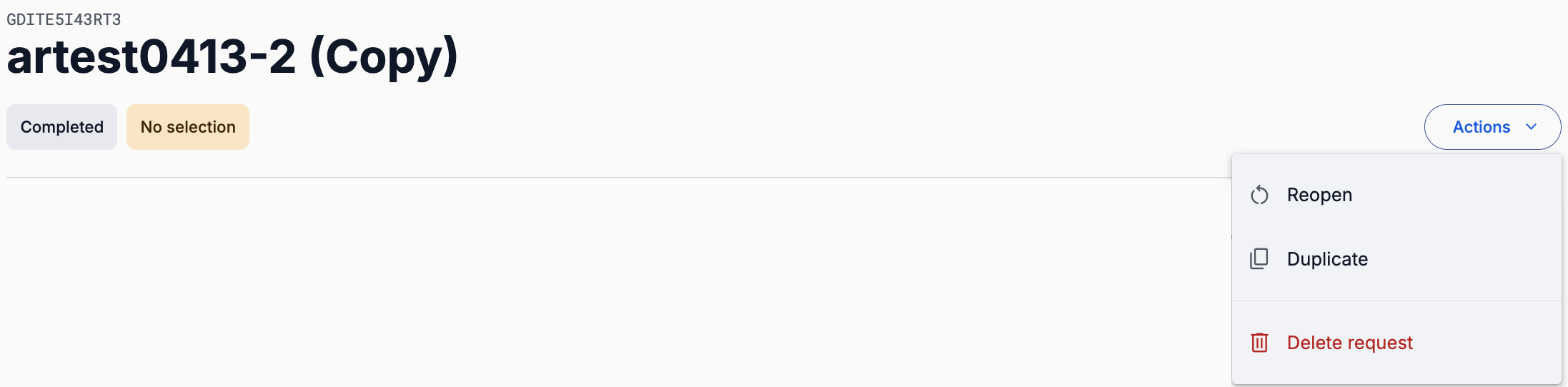
Go to Request for service, open the Completed tab and click the request. Click Actions and choose Reopen.
Step 2 - Add a reason
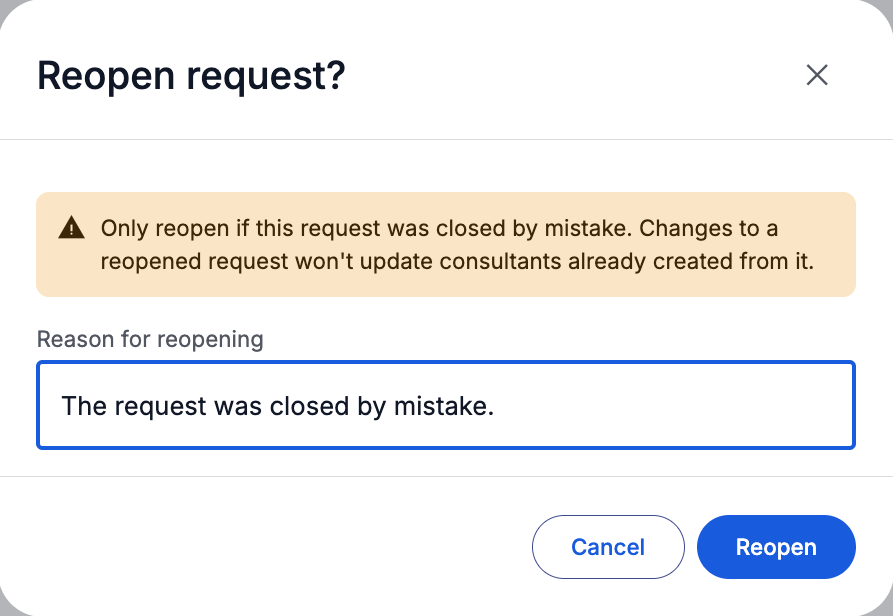
Enter a short Reason for reopening - it is required, and it is saved in the request's activity log. Click Reopen.
What happens next
The request goes back to the status it had before it was closed and moves out of the Completed tab.
The fields can be edited again.
The reopening and its reason are recorded in the activity log.

Good to know
Consultants already created from the request are not affected. Changes to a reopened request do not update those consultants.
Don't see Reopen? Not every closed request can be reopened. Write to us and we will help.
Related: How do I duplicate a request?
Need help?
Use the Need help? button in the bottom-right corner of the platform, or write to hello@flextribe.io. We are happy to help.
Was this article helpful?
That’s Great!
Thank you for your feedback
Sorry! We couldn't be helpful
Thank you for your feedback
Feedback sent
We appreciate your effort and will try to fix the article