This article explains how to duplicate a request, so you can start a new sourcing process without filling in everything again.
Duplicating is useful when you need a similar request again - for example to find a replacement for a consultant who is leaving, or to hire for the same role on another team. The copy keeps the details of the original, and you can change anything before it is approved.
Thing to keep in mind. The original request is not changed. The copy is a new request with its own approval flow - approvers need to approve it again. |
Step 1 - Choose Duplicate
You can duplicate a request from two places:
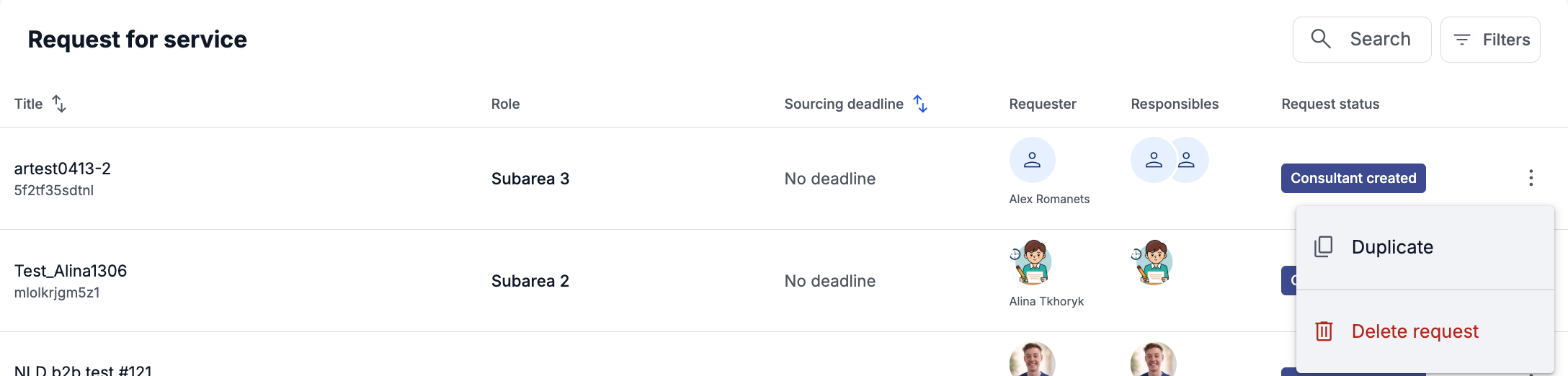
From the list - go to Request for service, click the three dots at the end of the request's row and choose Duplicate.
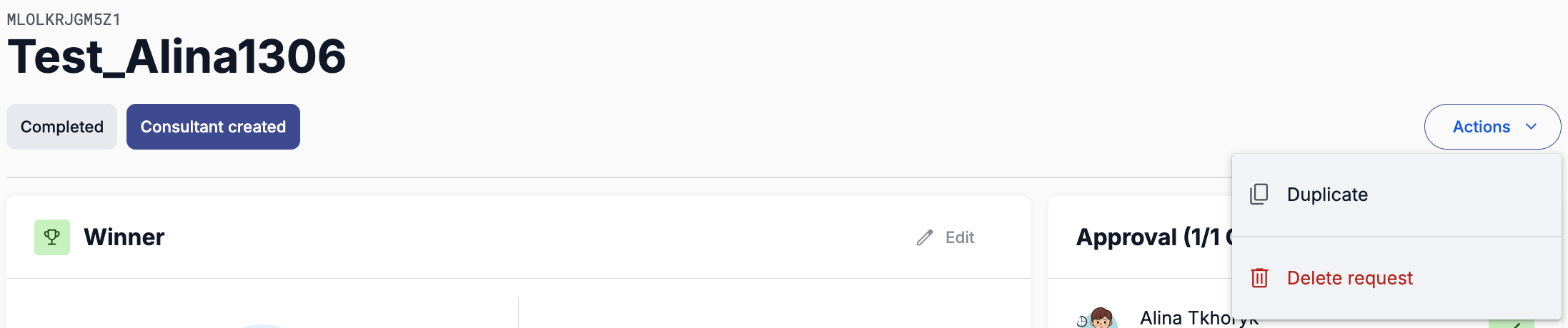
From the request page - open the request, click Actions and choose Duplicate.
Step 2 - Name the new request
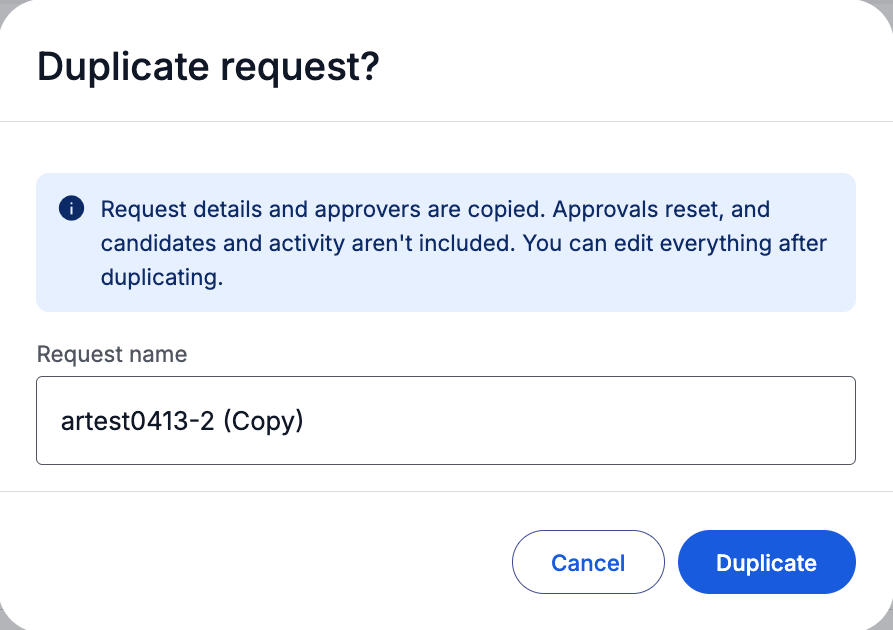
A window opens with the name of the original request followed by (Copy). Change the name if you like - request names must be unique - and click Duplicate.
What is copied
Price, description and justification
Onboarding information and documents
Sourcing deadline, start and end date, location, work arrangement, hours per week and number of consultants
Approvers (the approval chain only - everyone approves again), Procurement responsible and people
Suppliers the request is shared with
What is not copied
Candidates and the selected candidate
Rate negotiations
Approval decisions
Notes and the activity log
Step 3 - Review the new request
The new request appears in the New tab with the status In review. A banner at the top reminds approvers to check the copied details - suppliers, approvers, dates and the rest - before approving.
If everything is valid, the banner is a reminder only.
If the sourcing deadline, start date or end date is missing or in the past, the banner asks you to fix the highlighted fields. Approve stays disabled until they are updated.
Once approved, the request continues as any other request. Its activity log shows that it was duplicated and from which request.
Related: How do I reopen a closed request?
Need help?
Use the Need help? button in the bottom-right corner of the platform, or write to hello@flextribe.io. We are happy to help.
Was this article helpful?
That’s Great!
Thank you for your feedback
Sorry! We couldn't be helpful
Thank you for your feedback
Feedback sent
We appreciate your effort and will try to fix the article