Consultants instead of Assignments, reactivated requests and signing
What this guide covers
Finding your consultants
What you can see and do on the consultant card
What happens when a client reactivates a request
Signing contracts
Step 1 - Open Consultants
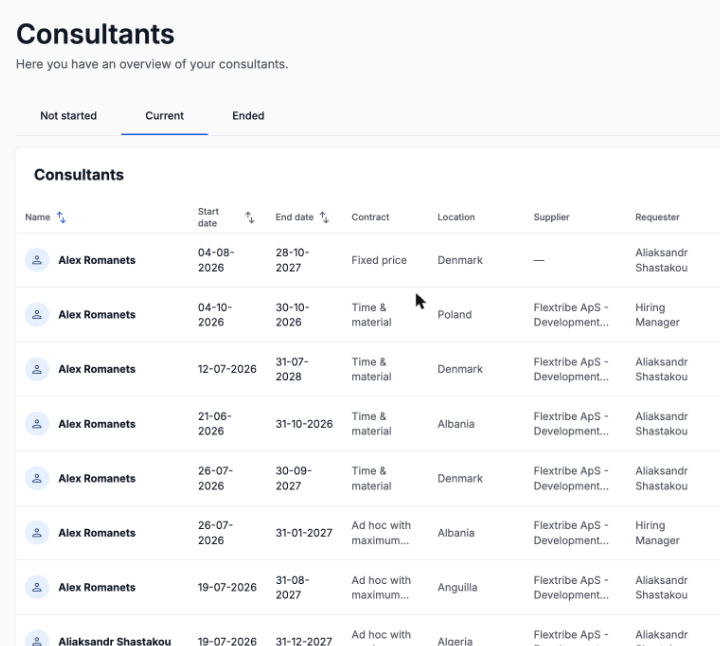
Click Consultants in the left-hand menu. Your consultants working for this client are grouped in three tabs:
Not started - hired consultants who have not started yet.
Current - consultants working right now.
Ended - consultants whose engagement has ended.
Step 2 - Open a consultant card
Click a consultant to see start and end date, location, rate, contract type, role, category, requester, Procurement responsible, contract history and documents. If something is happening, a banner at the top tells you - and whether anything is needed from you.
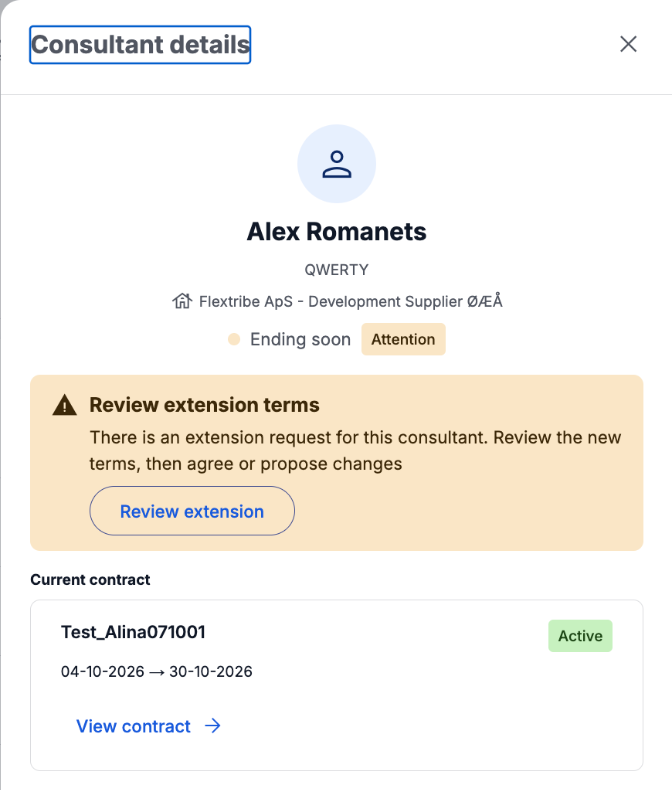
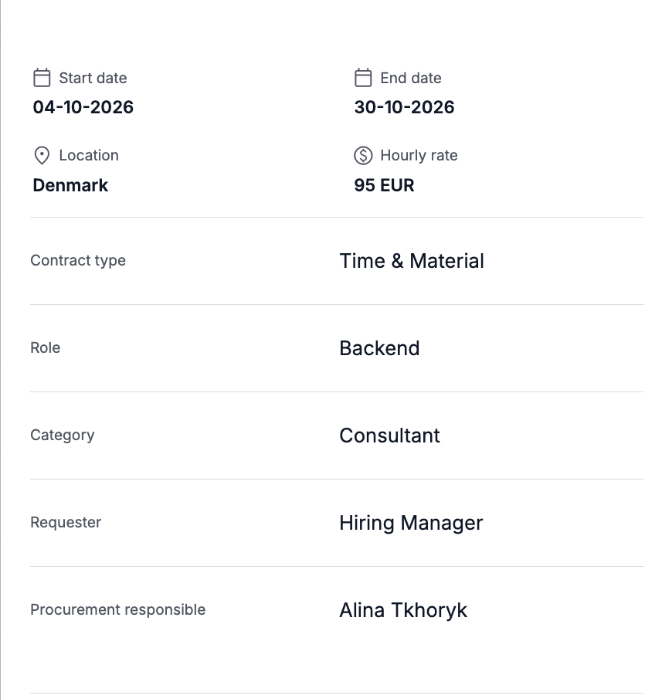
What you can do: see the engagement details, contract history and documents, and act on banners meant for you, such as Review extension terms.
What you cannot do: edit details - the card is read-only - or start other actions from the card.
Step 3 - When a client reactivates a request
A client can now bring a completed request back. If they do:
If the request is waiting for candidates again, you are notified that you can nominate.
Whenever one of your candidates is moved, you receive a notification.
If your candidate is moved back to Selected, rate negotiation starts from the beginning.
Candidates who already became consultants stay as they are.
You can still withdraw a candidate who is no longer available.
Step 4 - Signing contracts
Clients can now add a signee from your company directly while creating a contract. If you are added this way, you get access as a supplier contact and sign from the supplier space as usual.
Need help?
Use the Need help? button in the bottom-right corner of the platform, or write to hello@flextribe.io. Your client's Procurement team can also help with questions about a specific consultant or contract.
Was this article helpful?
That’s Great!
Thank you for your feedback
Sorry! We couldn't be helpful
Thank you for your feedback
Feedback sent
We appreciate your effort and will try to fix the article