Bring a completed request back and continue where it stopped
What this guide covers
When to reactivate a request
Step-by-step reactivation
Which stage the request returns to
What happens to candidates and suppliers
When to use it
The selected candidate dropped out and you need a new one.
The request was closed by mistake.
The need came back and you want to reuse the same request, approvals and suppliers.
Step 1 - Find the request
Go to Request for service and open the Completed tab. Closed requests show their outcome - for example No selection, Cancelled or Consultant created. Open the request.
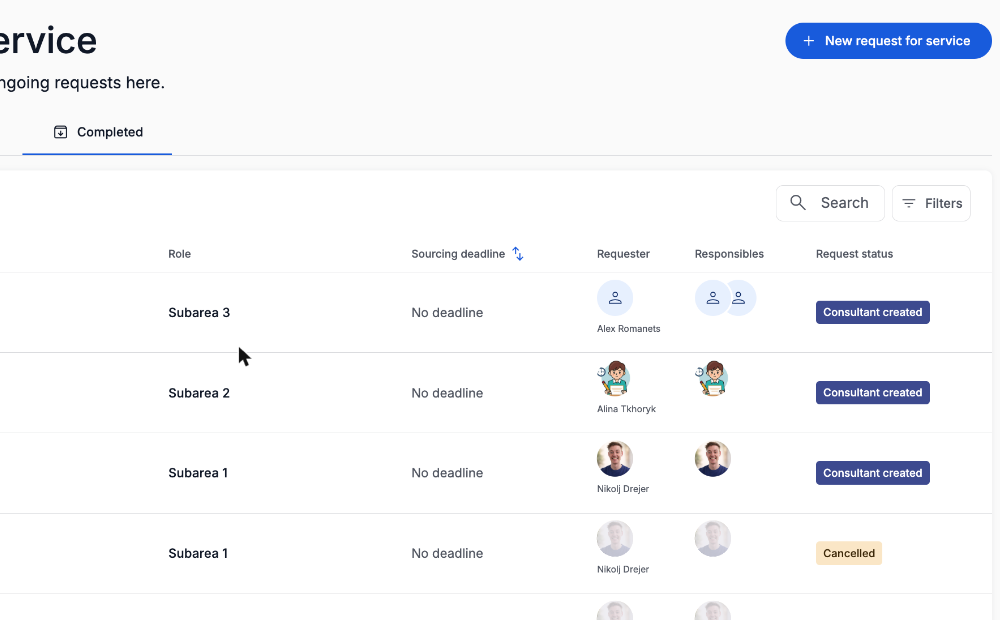
While a request is completed, all fields are read-only.
Step 2 - Click Reactivate request
At the top right of the request, click Reactivate request.
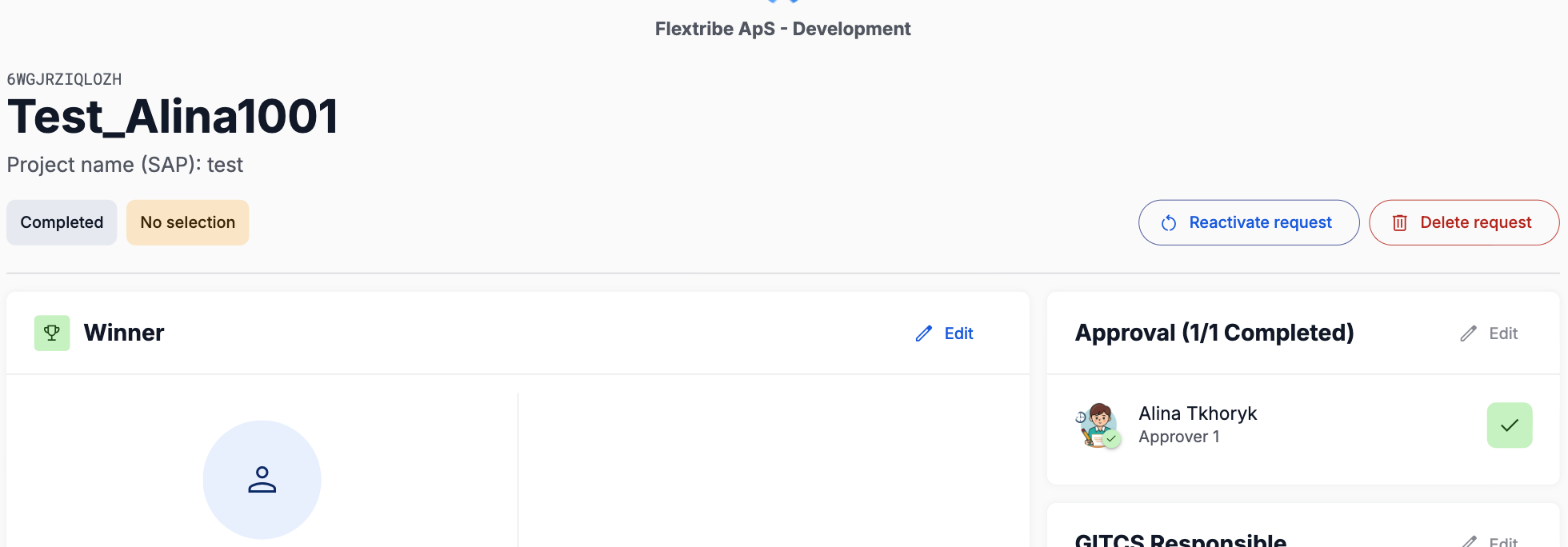
Step 3 - Continue from the restored stage
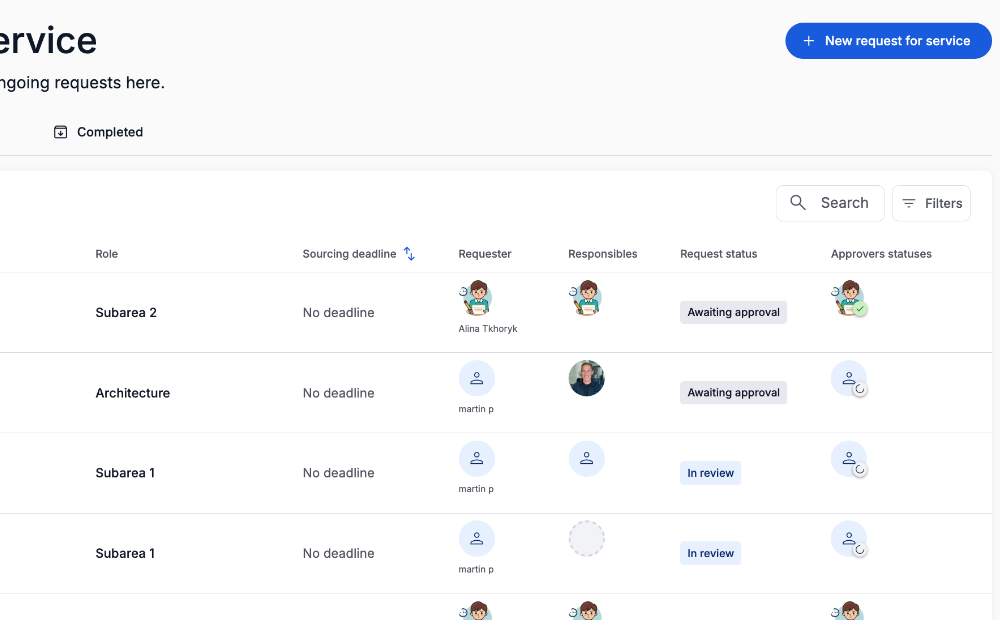
The request moves out of Completed and back to the tab it was in before. It is editable again.
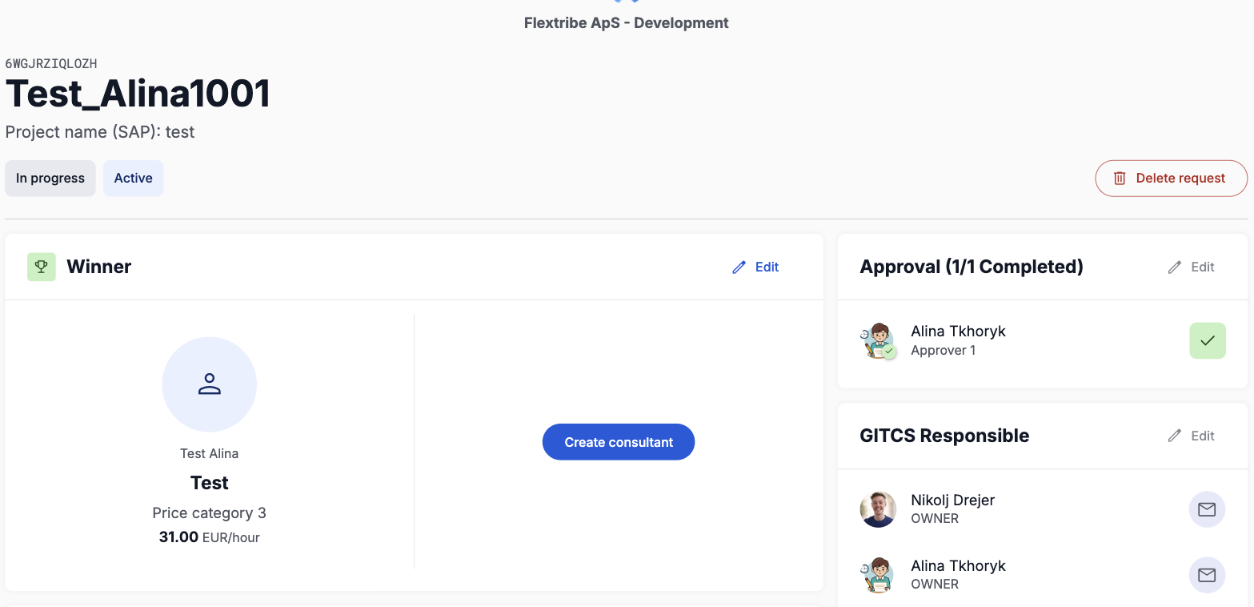
Closed from In review - comes back In review. Finish the review - when submitted, approval starts from the first approver.
Closed from Awaiting approval - comes back Awaiting approval. Approvals already given are kept, and the pending approver is notified again.
Closed from Rejected - comes back Rejected. The rejection reason stays visible - update approvers or details and resubmit.
Closed from Awaiting candidates - comes back Awaiting candidates. Suppliers are notified that they can nominate again.
Closed from Active - comes back Active. You can move candidates again (see step 4).
Step 4 - Work with candidates
When the request was closed: all candidates were moved to Not selected and any negotiation was reset - except candidates who already had a consultant created.
Now that it is reactivated:
Candidates with a consultant created stay in Selected and are locked - they cannot be moved, withdrawn or edited.
Other candidates stay in Not selected. Move them manually - the supplier is notified of every move.
If you move a candidate back to Selected, negotiation starts from the beginning and the previously agreed rate is cleared.
You can reshare the request to the same or new suppliers to get new nominations.
Step 5 - Follow it in the activity log
Every step - closing, reactivating, candidate moves, new approvals - is recorded in the request's activity log at the bottom of the request.
Good to know
Who can reactivate? Procurement.
Are the suppliers told? Yes - when the request is waiting for candidates again, and whenever one of their candidates is moved.
Do approvers need to approve again? Only the approvals that were still pending. Approvals already given are kept.
Need help?
Use the Need help? button in the bottom-right corner of the platform, or write to hello@flextribe.io. We are happy to walk your team through the changes.
Was this article helpful?
That’s Great!
Thank you for your feedback
Sorry! We couldn't be helpful
Thank you for your feedback
Feedback sent
We appreciate your effort and will try to fix the article